
In March, we wrote that Learning Labs would add GPU-backed environments so learners could run Cisco’s own AI models hands-on. The first two of those labs are now live, built on Antares. This post covers the labs first, then goes behind the scenes on how the platform runs GPU workloads. If you’re here for the security labs, the first half is all you need.
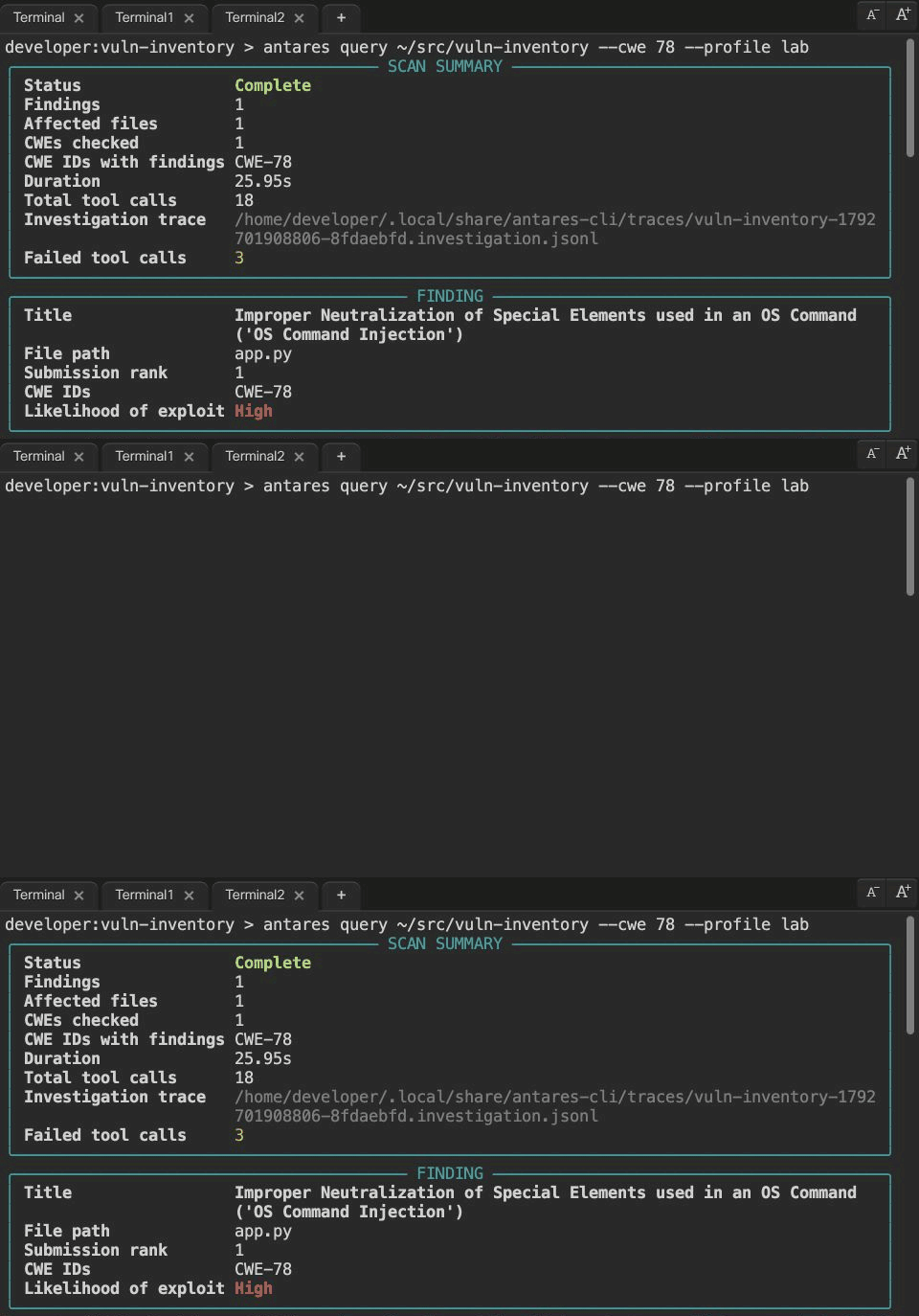
Antares-1B returns app.py as a command-injection candidate for review in the native DevNet GPU lab. This NVIDIA A10G run took 25.95 seconds; playback is condensed to 4.5 seconds. Try this lab
What Antares Does
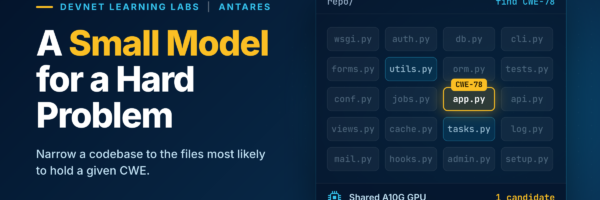
Finding where a known type of vulnerability actually lives in a large codebase usually means reading it file by file or sending your code to a large cloud model. Antares removes both constraints. It’s a family of compact, open-weight models from Cisco Foundation AI, small enough to run on a single GPU. They do one job: vulnerability localization. You give Antares a weakness type, written as a CWE (a standard category of software weakness, such as CWE-78, OS command injection), and it works out which files in a codebase may contain it.
Antares doesn’t scan code the way a static analyzer does, applying fixed rules in one pass. It works as an agent that investigates iteratively, the way a human reviewer works through an unfamiliar repository. Each step is chosen from what the last one revealed: it searches for relevant code patterns, reads the candidate files, folds in the new evidence, and follows leads from one file to the next. When a path turns out to be unproductive, it changes direction, narrowing toward the files most likely to matter until it has enough evidence to answer. Ask it to look for command injection (CWE-78), for example, and it searches for calls like os.system, opens app.py to see where the input comes from, and reports that file along with why it may be vulnerable.
Despite its size, Antares holds its own against much larger models on vulnerability localization (see the model card for benchmark details). It’s built as a fast, private pre-filter: it narrows a large repository down to a short list of candidate files for a human analyst, and your source code never has to leave your environment when the model and investigation tools are hosted there.
- Models: Hugging Face collection
- Paper: arXiv 2608.02407
- CLI: cisco-foundation-ai/antares-cli
Two Labs: Scan Code for Vulnerabilities on a GPU
In both labs, you point Antares at a codebase and a weakness type, and it tells you which files most likely contain it, and why. Model inference runs on a GPU in Cisco’s hosted, browser-based lab environment, and repository inspection runs there too. Each lab takes about 45 minutes (excluding model downloads) and requires a free Hugging Face account with approved access to the gated Antares models. The same steps work on any GPU-enabled host, so you can take what you learn to your own environment.
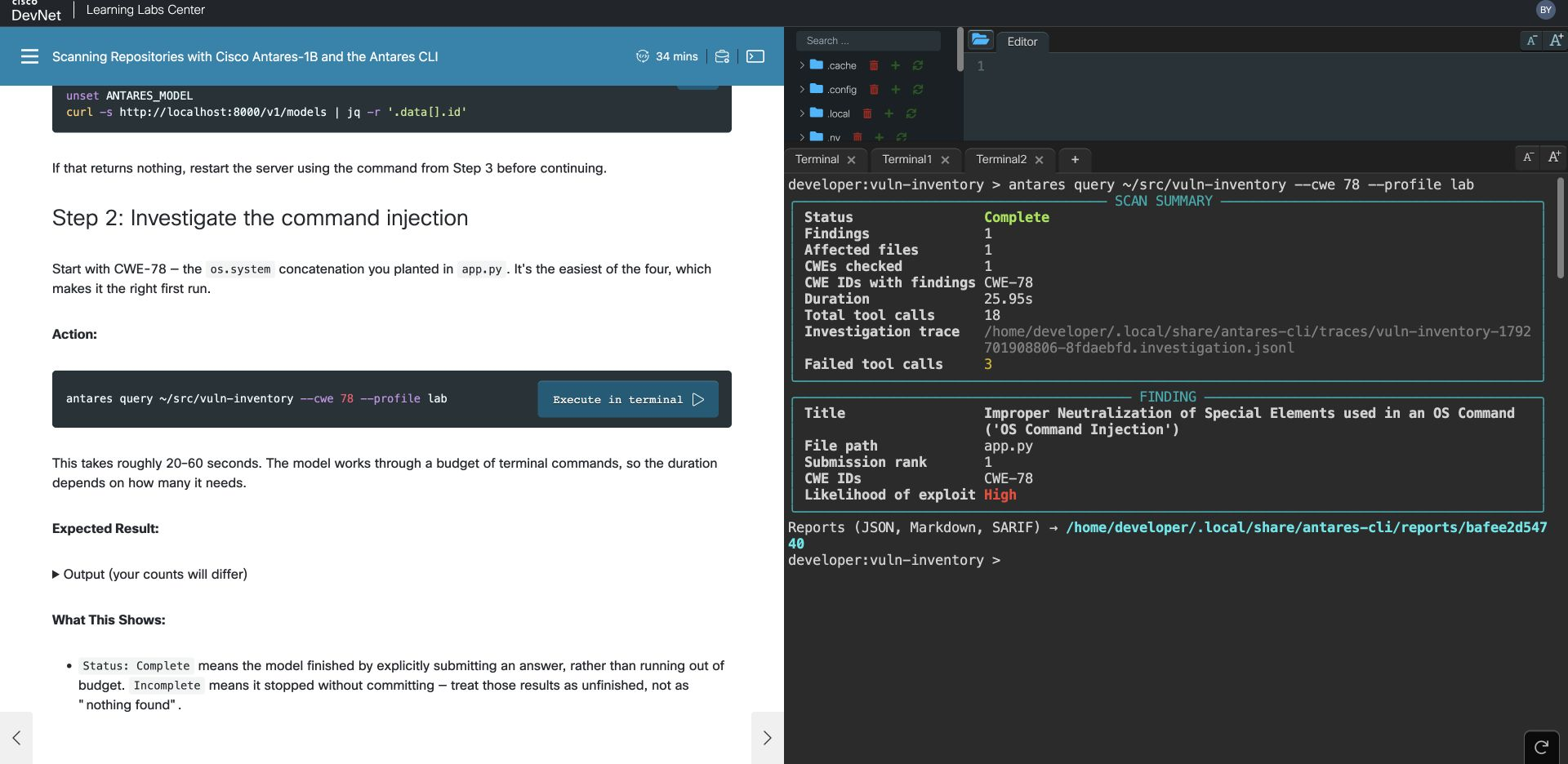
The native DevNet lab pairs the published query step with its completed Antares-1B output in the terminal.
Treat what Antares returns as candidates to verify, not confirmed findings. Like any localization model, it can miss a vulnerable file or flag a clean one. It works best alongside static analysis and manual review, not in place of them, and both labs show you how to check its work.
Antares Getting Started: Build Your Own Vulnerability-Hunting Agent
In this lab, you’ll build a working vulnerability-localization agent from scratch. You load antares-1b, write a small Flask app containing an OS command injection flaw (CWE-78), and code the agent loop that lets the model search it. Then you watch Antares hunt, one turn at a time: what it’s thinking, the command it runs, and what comes back. It ends by naming the file it believes is vulnerable and explaining why.
By the end, you’ll be able to:
- Search a codebase for a specific weakness type (a CWE) and get back the likely file with a plain-language explanation.
- Understand how an AI security agent works under the hood, rather than treating it as a black box.
- Keep the agent scoped to the code you’re scanning, using simple guardrails that refuse commands trying to read outside the repository.
- Verify the result yourself before trusting it, which is exactly how a security analyst uses a fast pre-filter like Antares.
Antares CLI: Scan a Repository the Way You Would in CI
In the second lab, you’ll scan a repository with several planted vulnerabilities using Cisco’s official Antares CLI, served on the GPU with vLLM. You work through the three commands you’d use on a real project:
- antares plan profiles the repository and recommends which weakness types are worth checking, before using any GPU time.
- antares query investigates one weakness. In the lab, it returns a command-injection candidate in app.py in about 24 seconds.
- antares sweep checks every recommended weakness in parallel and writes reports in JSON, Markdown, and SARIF, the format CI pipelines and code-scanning dashboards already read.
By the end, you’ll be able to:
- Scan a whole repository for the weakness types that matter to it with one command and review the findings.
- Plug the results into CI using SARIF output.
- Read a scan the way an analyst would, including checking which weakness types were selected before concluding anything was missed.
- Scan code you didn’t write, with guardrails in place. The CLI works on a read-only snapshot, allows only allowlisted read-only commands, blocks shell expansion, and quarantines prompt-injection attempts hidden in the scanned code.
Behind the Scenes: GPU Labs on the DevNet Platform
This half is for readers interested in how the platform runs GPU labs at scale.
Time-Slicing on Shared Nodes
GPU labs run on AWS g5.2xlarge instances, each with a single NVIDIA A10G (about 23 GiB of VRAM). Each lab environment gets a slice of that GPU, configured for 3 time-sliced replicas per physical GPU. Time-slicing splits compute time, not memory. All three learners share the same VRAM pool with no hard boundary between them, and that turned out to matter. (The A10G doesn’t support MIG, so hardware partitioning isn’t an option on this node type.)
For the cluster mechanics, including Kubernetes scheduling, time-slicing configuration, and Karpenter, see our GPU series: Part 1 and Part 2.
Three Learners, One GPU
Before publishing, we built a benchmark harness that runs each lab end to end through the same path a real learner uses, over the Istio gateway and WebSocket. It runs waves of concurrent lab environments and records completion, step timing, CPU, memory, disk, and per-process GPU telemetry.
Both labs completed with three learners running at once on a single GPU. In Getting Started, each learner got close to an even third of the GPU’s compute.
The CLI lab needed one fix to get there. Every learner starts their own vLLM server, and vLLM instances don’t coordinate GPU memory with each other (vllm#10643). By default, each server sizes its KV cache from whatever memory looks free at startup. When three start at once, each sees memory the others are about to claim; they over-commit, and typically only one comes up (“No available memory for the cache blocks”).
The fix takes two flags, because vLLM makes two separate memory decisions at startup:
- –kv-cache-memory 3120851354 fixes each server’s KV cache at 2.91 GiB, instead of sizing it from free memory. With nothing to measure, there’s nothing to race over.
- –gpu-memory-utilization 0.30 is still required. Even with a fixed KV cache, vLLM checks at startup that free memory covers its utilization target, which defaults to 90% of the card. At a 92% target, for example, once one server is up, that check fails for the next one with this error: “Free memory on device cuda:0 (17.96/22.06 GiB) on startup is less than desired GPU memory utilization (0.92, 20.29 GiB).” Setting the target to 30% lets each server start with its peers already resident.
With both flags, all three engines start together and complete the full lab.
GPU as a Property of the Lab
On the platform side, a lab author doesn’t touch GPU configuration. The lab declares a GPU-enabled image; the Learning Labs environment service schedules it onto the GPU node pool and releases the slice when the session ends. Learners just run nvidia-smi and start working.
Authoring with AI, Reviewed by Experts
We drafted both labs with an AI lab-authoring skill that encodes the Learning Lab structure and DevNet’s authoring style, and security subject-matter experts reviewed and refined them. We captured every expected output in the labs from a real run on a GPU; none of it is generated.
What’s Next
- Foundation-sec-8b: a lab running Cisco’s security foundation model on the same GPU infrastructure is next.
Try the labs and tell us what you’d like to see next.
- Antares Getting Started: developer.cisco.com/learning/labs/antares-getting-started
- Antares CLI: developer.cisco.com/learning/labs/antares-cli
- All Learning Labs: developer.cisco.com/learning
Thanks to Didier Chapoteau and Barry Yuan for reviewing and refining the lab content, Matt Shooshtari for GPU and CUDA configuration, Jerry Chang for GPU cluster automation, and Angellee Li for Learning Labs platform support.