For enterprise wireless and NetOps teams managing dense campus and distributed branch environments, AI-assisted troubleshooting can help identify whether issues are client-specific, rooted in the radio frequency (RF) layer, or related to network services like DNS, DHCP, and RADIUS. Following the latest wireless innovations from Cisco introduced at Cisco Live 2026 in Las Vegas, this walkthrough demonstrates how Cisco AgenticOps for Wireless can help teams move from reactive monitoring to proactive, evidence-based troubleshooting.
Scenario: Two tickets, one engineer, fast resolution needed
It’s a regular Wednesday morning, until it’s not. Two tickets land in your queue almost simultaneously. The first is from a user who cannot stay connected. The second is a flood of complaints from an entire office reporting unreliable Wi-Fi. The tickets give some context but not enough to immediately know what is causing the connectivity issues.
This is the reality of modern network operations: Incidents do not come with clean diagnostics attached. You are expected to isolate root cause, validate your findings, and remediate before the issue affects more users or escalates further.
This walkthrough follows that scenario, using Cisco AgenticOps for Wireless capabilities: Experience Metrics, AI PCAP, AI Configuration Recommendations, and AI-Enhanced Radio Resource Management (AI-RRM) with Flexible Radio Assignment (FRA), to work through two distinct, real-world wireless incidents from initial alert to validated remediation.
Understanding the framework: Sense → diagnose → remediate
Sense: Answer questions like, “Are my clients connecting quickly and having an exceptional post-connection experience?”
Diagnose: Drill down to root cause. Correlate metrics like connection failures and bad roams, logs, device analytics, netowrk service, and packet-level evidence.
Remediate: With more context, you can implement targeted fixes with confidence.
Throughout these incidents, you should be asking the same five foundational questions:
- Is this a network-wide issue or isolated to a single client?
- Is the problem happening before or after a connection?
- Which part of the connection path is contributing to the issue: wireless access, network services, WAN connectivity, or the client?
- What is the root cause, and how do we prove it?
- How do we fix it, and how do we prevent recurrence?
Incident 1: Client-specific authentication failure
Ticket: A user with a mobile phone in the San Francisco office keeps getting dropped. You have a client device, a location, and a symptom. That’s it.
Step 1: Sense—Using Experience Metrics
You navigate to Experience Metrics, which is a high-level view of network health as experienced by clients in real time. It is a synthesized picture of whether your clients are connecting successfully and staying connected. It moves beyond simply confirming the access point (AP) is up and clients are successfully authenticating and maintaining sessions to better understanding the user experience on your Wi-Fi.
At a glance, you can tell that most of the metrics are healthy, with the exception of a brief dip in Wireless Successful Connections, with authentication failures as the top contributor. You can conclude that while most clients connect quickly and are having a smooth post-connection experience, you should take a closer look at the authentication failures to see if the user that raised a ticket is one of those clients affected.
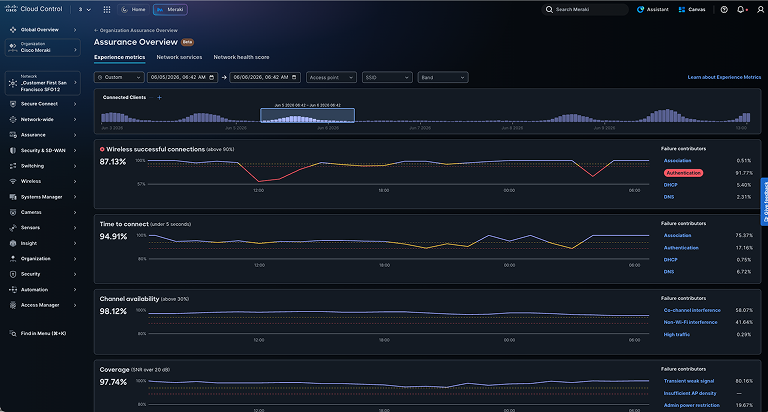
This is where Experience Metrics earns its value. Rather than sending you down a series of individual AP logs, RF data, and authentication server queries, it surfaces a simplified root cause analysis right on the page: the majority of failed connections were due to invalid credentials.

You navigate to the Clients list in the Investigations panel to see who is affected. One client stands out immediately; the mobile phone from your ticket. Its failure rate is 100%. Every authentication attempt is failing. Since there are only a handful of clients experiencing failures, you can deduce that this is likely a client-specific issue.
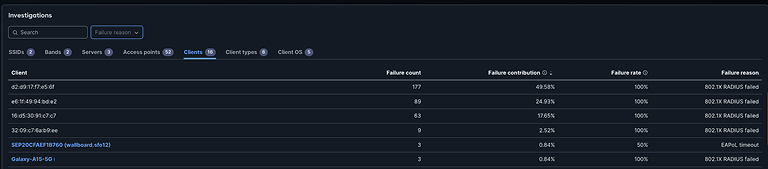
First major question answered: This is isolated to a few individual clients rather than a network-wide issue.
Step 2: Diagnose—AI PCAP Analyzer
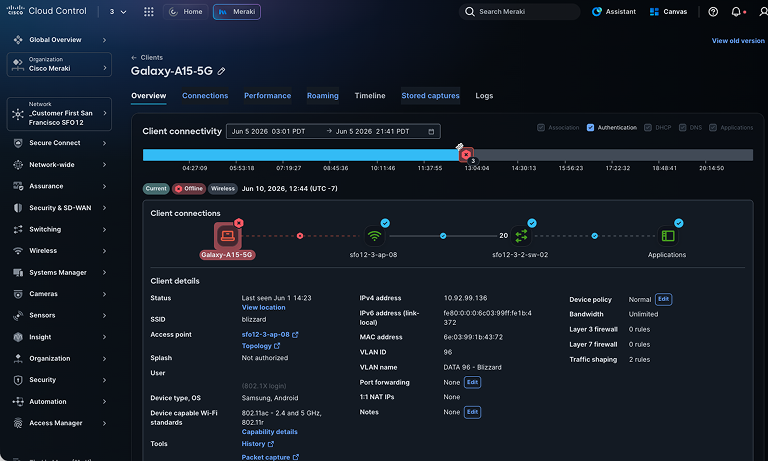
Selecting the client brings you to the Client Overview page, where you can see the device’s IP address, SSID association history, and the Client Connectivity graph.
The timeline tells a story immediately. There was a healthy connection until recently, with several failed connection attempts happening in succession, so you have now identified the source of the client’s connection issue.
Now you need to understand why, and the evidence for that will come from AI PCAP Analyzer. When enabled, AI PCAP Analyzer automatically captures network traffic during a detected failure event, then applies AI to analyze the packet capture and identify likely root causes, translating raw packet data into plain-language findings. In this case, it shows that an expired certificate was the cause of the connection failure.
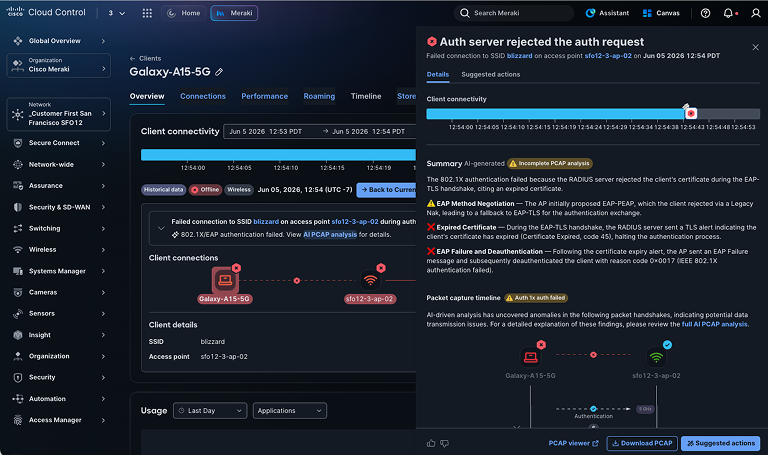
Root cause identified (client certificate expired) and validated at the packet level.
Step 3: Remediate—Actionable steps without the guesswork
From the AI PCAP Analyzer, select Suggested Actions.
This section gives you step-by-step remediation guidance specific to the failure that was observed and suggests how to validate the fix. In this case, the client will likely need to “forget” the network and reconnect to reinstall the certificate.
Most importantly, you now have evidence to rule out a network infrastructure problem in just a few clicks.
Incident 2: Network-wide performance degradation from RF interference
Ticket: Wi-Fi is slow and keeps dropping out. Multiple people in London are affected. Same day. Different problem. This time, it’s not one client; it’s an entire office.
Step 1: Sense—RF metrics and channel analysis
You navigate back to Experience Metrics, and because the symptom this time is performance degradation rather than connection failure, your investigative lens shifts. Users are connecting, authentication is succeeding, but the experience is poor. That points you toward the RF environment, and you notice that the channel availability metric is low.
The data is clear: it shows co-channel interference is responsible for 95% of channel availability problems in this network, and it also shows that congestion in 2.4 GHz is causing the majority of the channel availability failures.
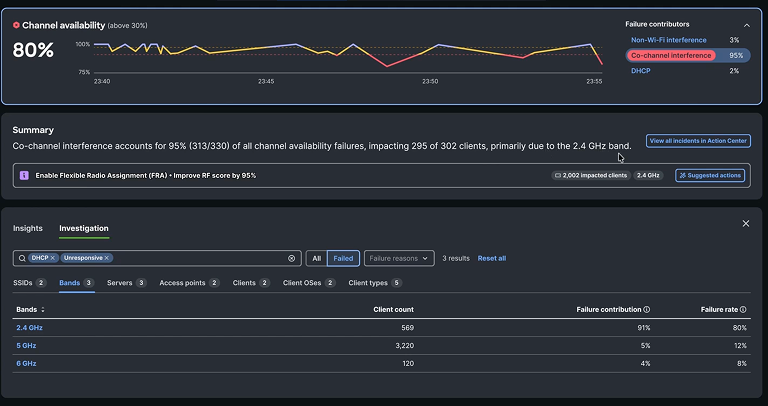
In a dense office wireless deployment, multiple APs operating on the same channel in close physical proximity can compete for airtime. A transmission from one AP can force neighboring APs on the same channel to defer, creating congestion at the MAC layer. This can result in increased retry rates, higher latency, and degraded throughput even when signal levels are strong. This is a classic high-density deployment problem that can intensify when channel planning cannot adapt to changing conditions.
Second major question answered. This is a network-wide issue rooted in the RF layer, not client behavior or authentication infrastructure.
Step 2: Diagnose—Validating the RF hypothesis
At this point, Experience Metrics shows at a glance:
- The failure source: Co-channel interference at 95% is the primary contributor to channel availability failure, and within that, 2.4 GHz is the most affected band.
- The blast radius: 295 of 302 clients are affected by channel availability failure.
The RF environment is degraded, and it is affecting connectivity and performance for the entire London office. The question now is whether there is a proactive, AI-driven remediation path available and whether you can act on it without a manual reconfiguration project. Within Experience Metrics, there is a suggested action to resolve this issue: “Enable Flexible Radio Assignment to improve RF score by 95%.”
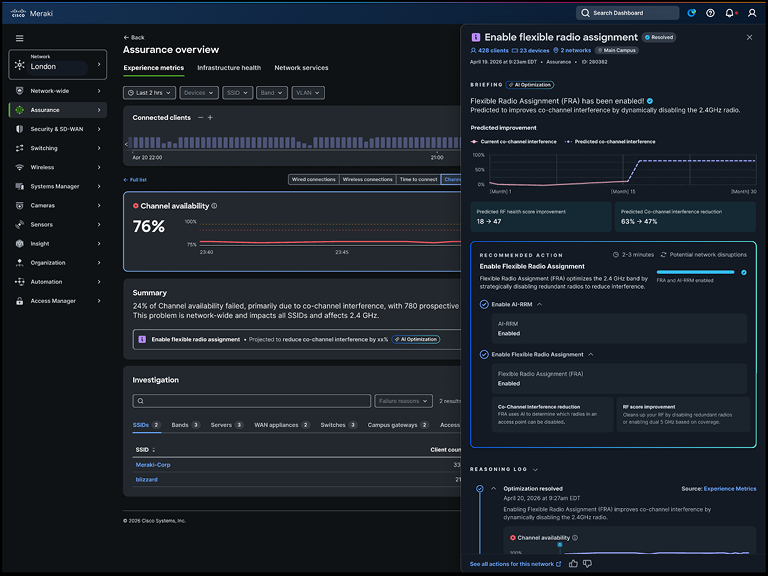
Figure 7: Enabling Flexible Radio Assignment is recommended to help reduce 2.4 GHz interference.
Cisco AI Configuration Recommendations has surfaced its recommendation based on historical data in your network and tied it to the symptom seen in Experience Metrics, providing an actionable suggestion to improve channel availability.
Step 3: Remediate—AI-RRM and FRA
FRA is a feature within AI-RRM (Radio Resource Management) that addresses co-channel interference by dynamically deactivating the 2.4 GHz radio on select APs in your network when they are the primary source of interference.
In dense deployments, the 2.4 GHz band is particularly vulnerable to co-channel interference because it has only three non-overlapping channels (1, 6, and 11). When you have more APs than available channels in each area, interference is more likely. By selectively disabling 2.4 GHz radios on APs that have adequate 5 GHz coverage from neighbors, FRA reduces the number of competing transmitters in the congested band, helping reduce interference without requiring physical changes to the environment or manual RF redesign.
From the Optimization Detail page, select Suggested Actions, review the recommendation, and select Accept Recommendations.
The dashboard applies the FRA configuration to the target network. The 2.4 GHz radios on the affected APs are deactivated. After the recommendation is applied, you return to Experience Metrics to monitor whether channel availability improves, co-channel interference decreases, and successful wireless connections recover.
Troubleshooting is complete
Step back and consider what was accomplished across both incidents. The difference was less ambiguity at each decision point: The workflow helped you follow evidence from symptom to root cause to remediation. Cisco AgenticOps for Wireless allowed you to shift from reactive troubleshooting to proactive resolution.
For network engineers managing distributed environments, dense wireless deployments, or hybrid workforces where the wireless experience is the productivity experience, this kind of capability is designed to help reduce troubleshooting time and improve operational confidence.
The tools are in the dashboard. The workflow is repeatable. The only question left is whether you are equipped to use them on your network.
Evaluating Cisco AgenticOps for Wireless? Contact your Cisco representative to discuss trial options. Already a Cisco wireless customer? Check with your Cisco representative to confirm licensing requirements and enablement options.
Explore Cisco AgenticOps for Wireless